Parametric Sweep
The Parametric Sweep feature allows you to calculate parameters of a transmission line model as a function of a selected parameter. To do a parametric sweep, SimPCB Lite performs a series of model analyses, modifying the values of the selected parameter in pre-defined steps.
The following parametric sweeps are supported:
- Calculation of impedance values (along with secondary parameters) at varying values of a selected parameter.
- Calculation of transmission line parameters for a target impedance at varying values of a selected parameter.
The sweep parameter is defined by a range of values and a step.
Parametric Sweep Walkthrough
To perform a parametric sweep calculation, do the following:
-
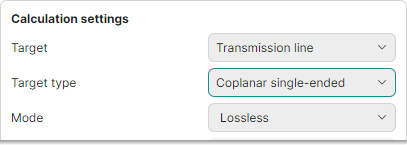
Set the initial calculation settings as shown below:
- Set Target to
Transmission line - Set Target type to
Single-ended,Diff pair,Coplanar single-ended, orCoplanar diff pair - Set Mode to
Lossless
- Set Target to
-
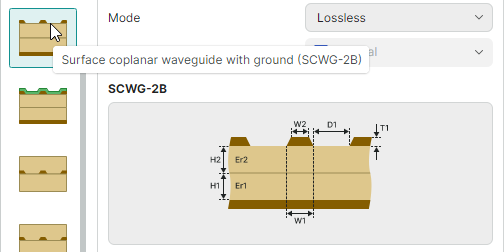
Select the required transmission line model and review it in the preview area.
-
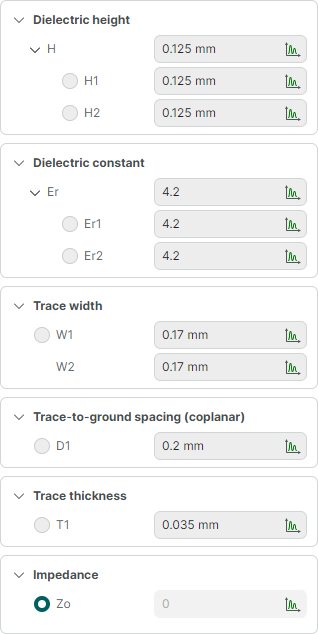
Define the input parameters for the transmission line.
-
Select the sweep parameter.
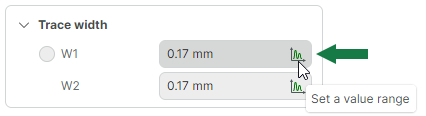
Any parameter that can be selected as the sweep parameter displays the active
 button in its edit field. This button is used to set a value range. Parameters that do not allow a value range have this button disabled.
To set a range of values for the sweep parameter, click the
button. In the Value range dialog that appears, set the minimum and maximum values, as well as the step, and click Apply.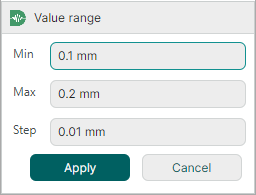
The specified range will be displayed in the edit field.
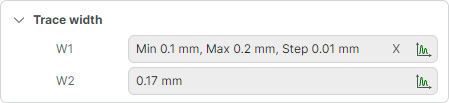
A sweep parameter cannot be selected as the calculated parameter in reverse calculations. To clear the specified range and reset the sweep parameter, click the X button in the edit field.
-
Click Calculate in the lower-right corner of the calculation tab to run the calculation.
Before running the calculation, you can click the dropdown arrow next to the Calculate button to choose between two calculation saving options:
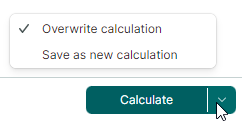
- Overwrite calculation – Saves the modified input parameters to the current calculation, overwriting previous data.
- Save as new calculation – Saves the modified input parameters to a new calculation. This calculation will appear in the Projects panel.
Calculation Results
You can view the calculation results in the table and graph formats at the bottom of the tab.
-
Table Form
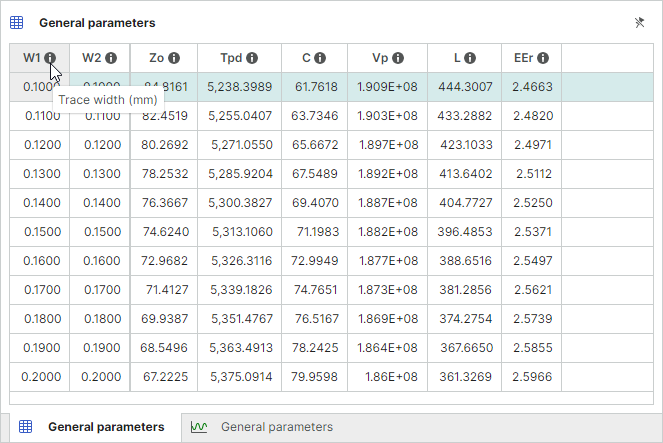
The first column in the results table displays the sweep parameter.
-
Graph Form
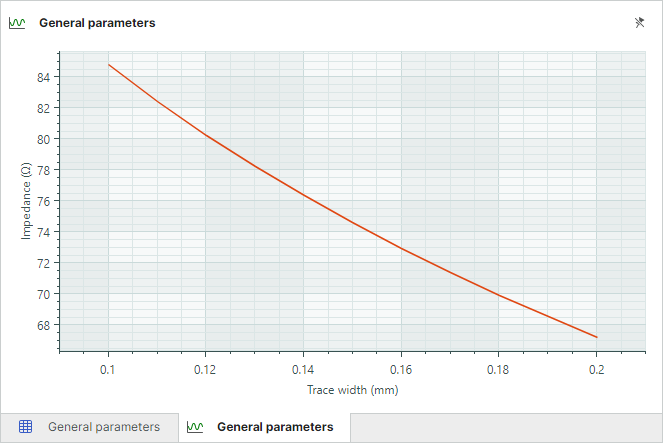
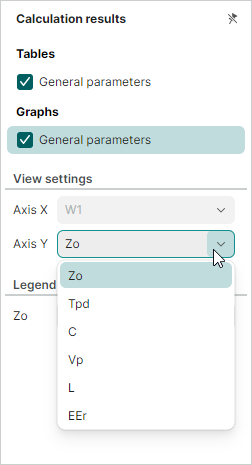
The X-axis of the graph displays the selected sweep parameter. The Y-axis parameter can be defined in the Calculation results panel.
When you move the cursor over the graph, it snaps to one of the X-axis parameter values. The graph displays the information about the X and Y parameter values. Guide lines help you track parameter values more accurately.
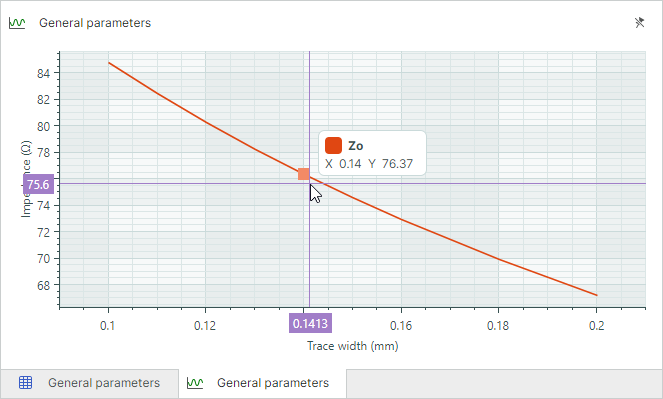
To change the color of the graph, see the Legend section in the Calculation results panel.