Calculations
Individual calculations are displayed in tabs. Each calculation tab allows you to specify the input data (the object of the calculation and its parameters), view results of the calculation, and customize the presentation settings of the results.
To run a calculation, follow these steps:
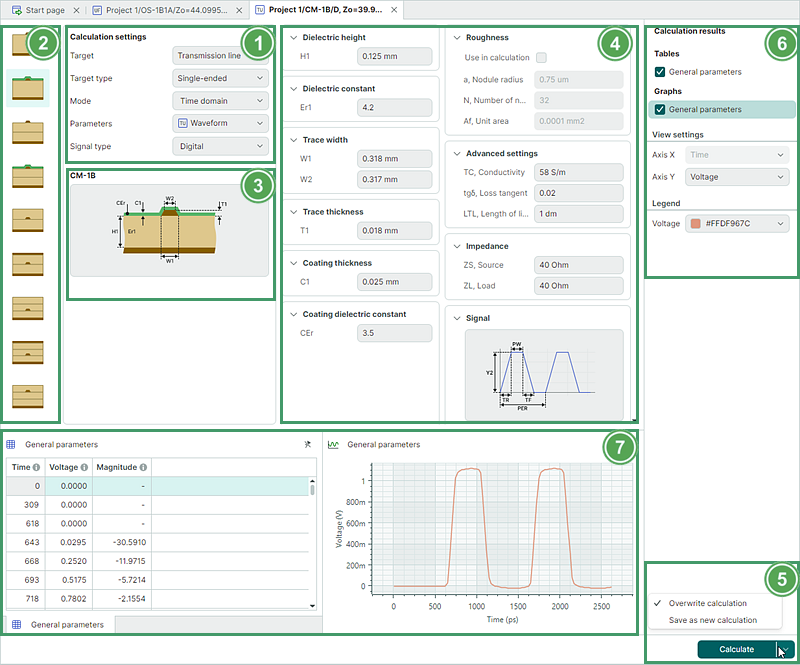
- Select the target object type (transmission line or via) and calculation mode.
- Select the transmission line or via model (structure).
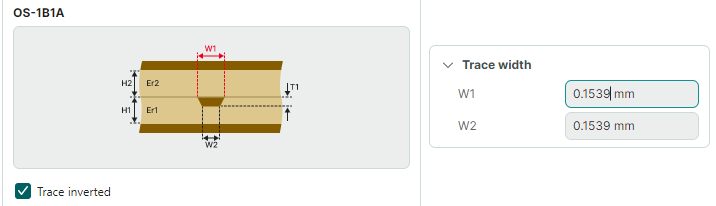
- Review the selected transmission line or via model.
- Specify the input parameters for the calculation.
-
Run and save the calculation.
You can click the dropdown arrow next to the Calculate button to choose between two calculation saving options:
- Overwrite calculation — Saves the modified input parameters to the current calculation, overwriting previous data.
- Save as new calculation — Saves the modified input parameters to a new calculation. This calculation will appear in the Projects panel.
-
Configure the result presentation settings.
- Analyze the calculation results visualized in table and/or graph formats.
Specify Calculation Parameters
Units of Measurement
Input calculation parameters are specified in corresponding edit fields in a calculation tab. Units of measurement are present in every edit field, except for dimensionless quantities (for instance, dielectric constant).
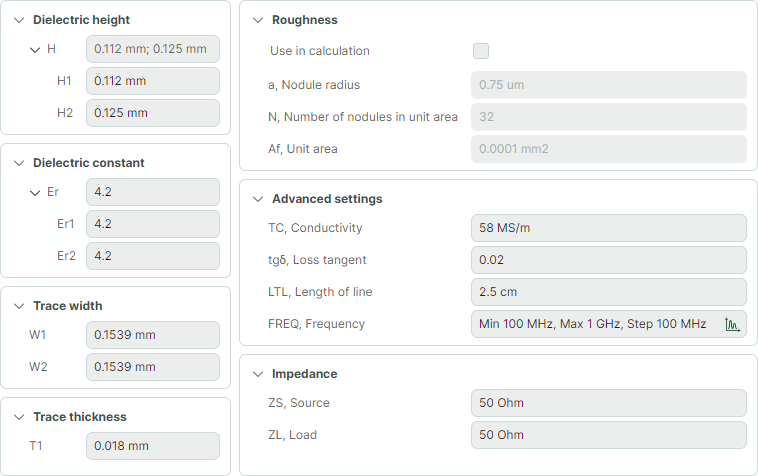
You can leave the default units in edit fields, or use any compatible units. SimPCB may perform automatic value conversion to the default units when focus leaves the field or when you press ENTER.

Warnings
If the entered parameter value falls outside the range set in the application's Settings, a warning will be displayed indicating the value requirement.

Parameter Highlight
When you edit a parameter, the corresponding parameter label is highlighted in red on the model in the preview area.