Group
You can combine models/calculations in groups to organize them according to your logic. You can think of groups as custom optional folders.
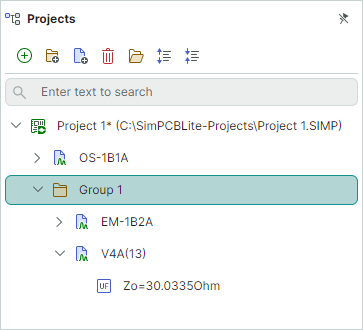
Create Groups
-
Click Add new group in the Projects panel toolbar.
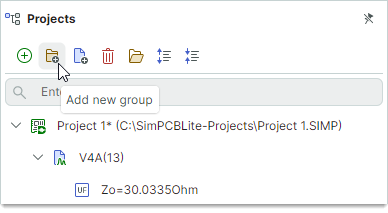
or
-
Select Add new group from the context menu.
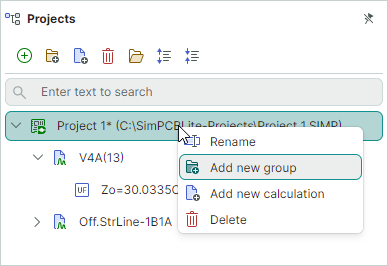
When you create a new group, you can specify a custom group name. Once the group is created, a new model and a new calculation are added to this group automatically.
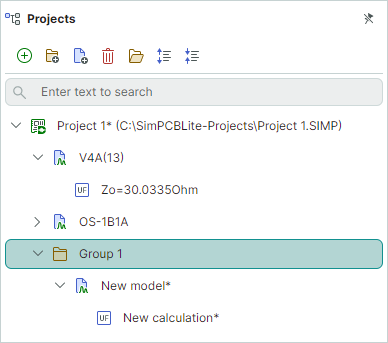
Rename Groups
When required, you can rename the group as follows:
- Select the group (for instance, by a mouse click) in the Projects panel, and then press F2, or click the group name again.
or
-
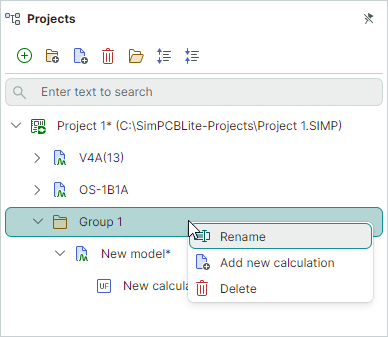
Right-click the group, and select Rename from the context menu.
Add New Calculations
-
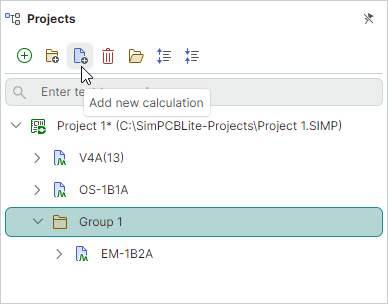
Select the group and then click Add new calculation in the Projects panel toolbar.
or
-
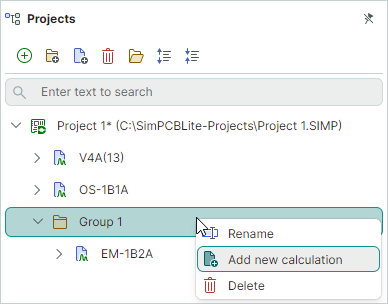
Select Add new calculation from the context menu.
Move Existing Models/Calculations Between Groups
Use drag-and-drop operations to move existing models/calculations to a specific group.
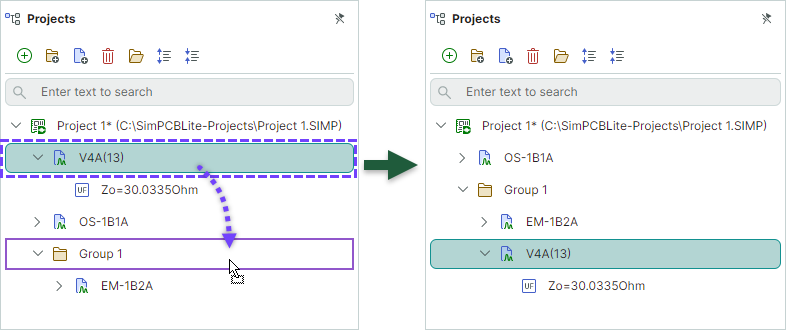
Drag-and-drop operations allow you to move calculations between groups and to the project level.