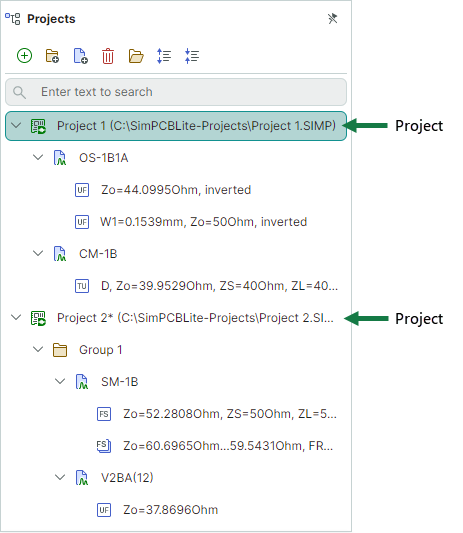
Project
A project is a single unit (*.SIMP file) that contains models (structures) and calculations. SimPCB Lite allows you to open multiple projects simultaneously and access them from the Projects panel.
Create New Project
-
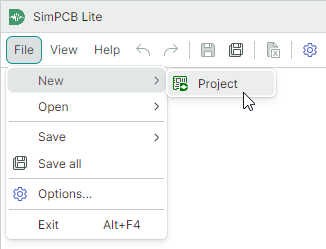
Select New → Project from the File menu.
or
-
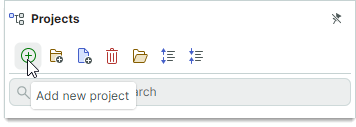
Click the Add new project button in the Projects panel toolbar.
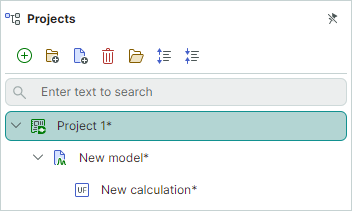
When you create a new project, a new model and a new calculation are created automatically. Their names will be updated after you run the calculation.
Open Existing Project
-
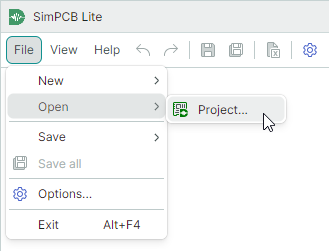
Select Open → Project from the File menu.
or
-
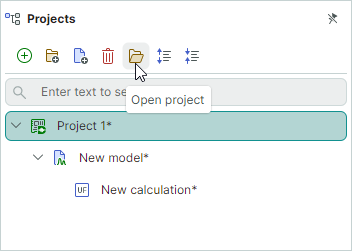
Click the Open project button in the Projects panel toolbar.
Add Calculations
You can add calculations to a project as follows:
-
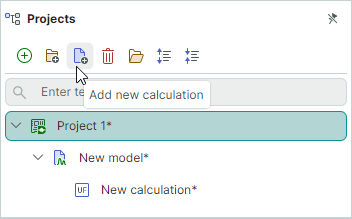
Click Add new calculation in the Projects panel toolbar.
or
-
Select Add new calculation from the context menu.
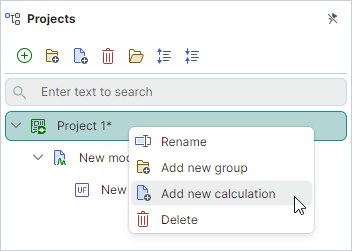
Add Groups
You can add groups to a project to combine calculations according to your logic. To add groups, do one of the following:
-
Click Add new group in the Projects panel toolbar.
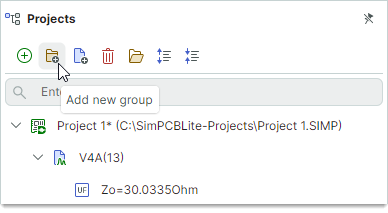
or
-
Select Add new group from the context menu.
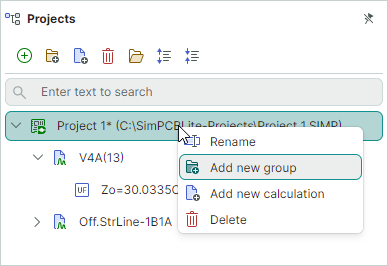
Save Project
-
Select Save → Project or Save all from the File menu.
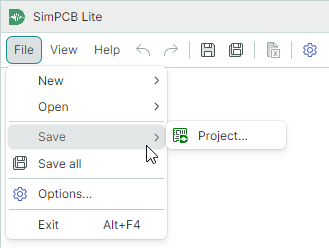
or
-
Select Save → Project or Save all from the main toolbar.
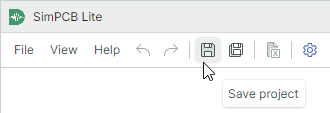
Save operations are available after you perform calculations.
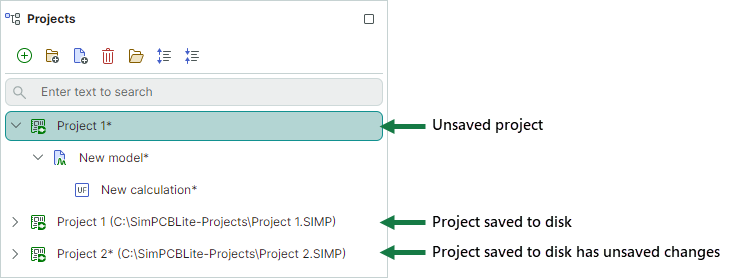
Saved projects display the full path to the SIMP file. Unsaved projects only display project names.
Close Project
To close a project (remove it from the Projects panel), do one of the following:
-
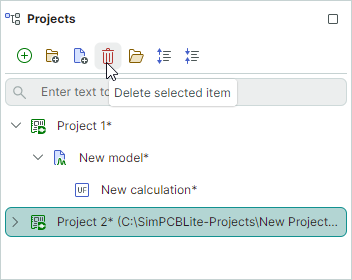
Click Delete selected item in the Projects panel toolbar.
or
-
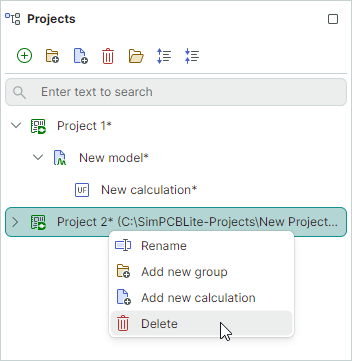
Select Delete from the project's context menu.
These commands remove the selected project from the Projects panel. They do not delete the project physically from the disk.
Drag Items Between Projects
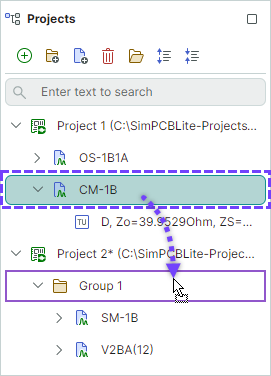
You can move groups, models, and calculations between projects using drag-and-drop.