Activate and Manage Licenses
Before using SimPCB Lite, you must activate your software. The application can be activated using either a software key or a USB hardware key. Your specific activation method depends on your SimPCB Lite purchase agreement.
SimPCB Lite supports the following types of license keys:
- Local software key
- Network software key
- Local USB hardware key
- Network USB hardware key
Activation Requirements
-
Local Keys: You must perform the activation process on every individual computer where the SimPCB Lite application is installed.
-
Network Keys: Activation is required only on the host computers or servers where the network keys are installed.
If you launch SimPCB Lite without a valid license, the application automatically opens the License activation window. You can use this window to select your license type and complete the registration.
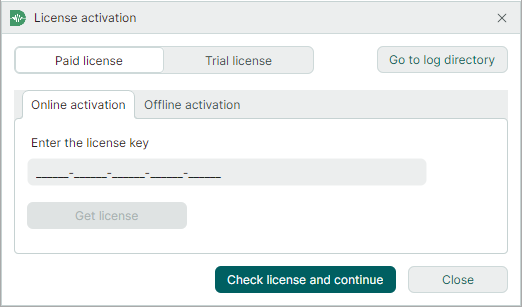
Software key activation requires an active Internet connection. If the target computer does not have Internet access, you can use offline activation. See the following topics for more information:
License Management Utilities
SimPCB Lite includes two utilities from Guardant to help you manage your licenses:
-
Guardant License Wizard – A graphical (GUI) and command-line utility used to add, update, and transfer licenses.
Executable file:
license_wizard.exe(for Windows). -
Guardant Control Center – A local web-based service for monitoring and managing active licenses.
Installation file:
grdcontrol-x.xx.msi(for Windows).
These utilities are located in the LicenseActivation subdirectory of your SimPCB installation folder (C:\Program Files\Eremex\SimPCB Lite\LicenseActivation\, by default).
When you perform online activation using Guardant License Wizard, the utility sends activation requests to the remote license server at https://getlicense.guardant.ru. Ensure your network firewall allows outbound traffic to this address.