Parametric Sweep
A parametric sweep of vias allows you to evaluate how changes in a specific via setting impact impedance and secondary via parameters.
To perform a parametric sweep, do the following:
-
Set the initial calculation settings:
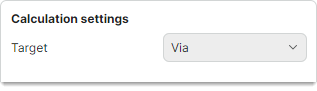
- Set Target to
Via
- Set Target to
-
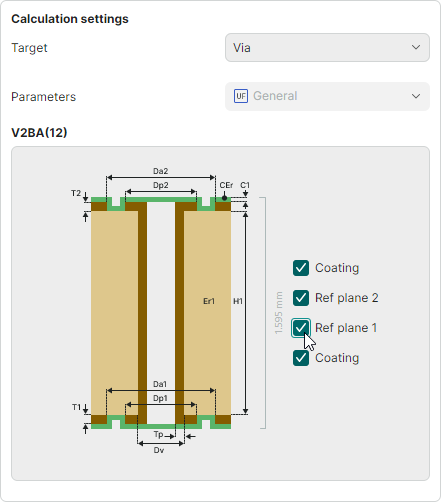
Select the required via model and configure it by enabling or disabling the Coating and Ref plane 1...4 checkboxes in the preview area.
-
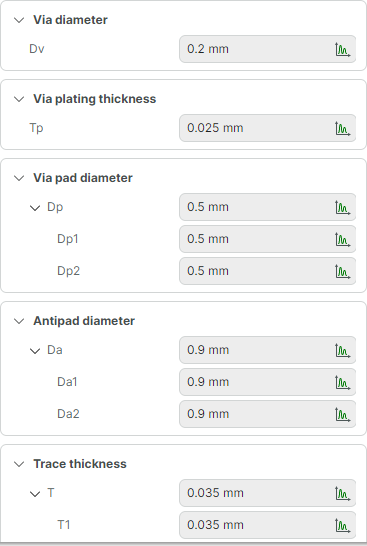
Define the input parameters for the via.
-
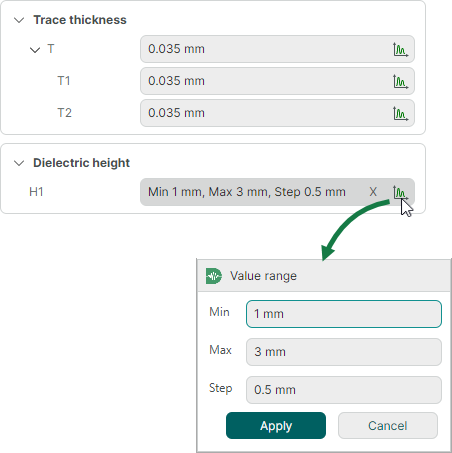
Select the sweep parameter and specify its range and step.
-
Click Calculate in the lower-right corner of the calculation tab to run the calculation of the selected parameter and secondary via parameters.
Before running the calculation, you can click the dropdown arrow next to the Calculate button to choose between two calculation saving options:
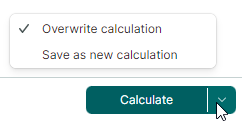
- Overwrite calculation – Saves the modified input parameters to the current calculation, overwriting previous data.
- Save as new calculation – Saves the modified input parameters to a new calculation. This calculation will appear in the Projects panel.
Calculation Results
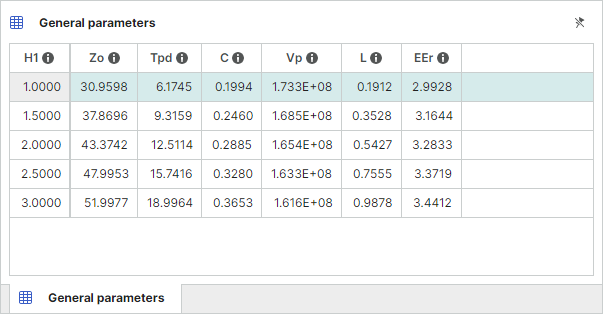
The parametric sweep results are visualized in table and graph formats at the bottom of the tab.
In the results table, the first column contains the sweep parameter values. Other columns display the calculated characteristic impedance and secondary via parameters.
If the sweep parameter is the via diameter (Dv), the relationship between the via diameter (Dv), pad diameter (Dp), and antipad diameter (Da) is retained during the calculation.
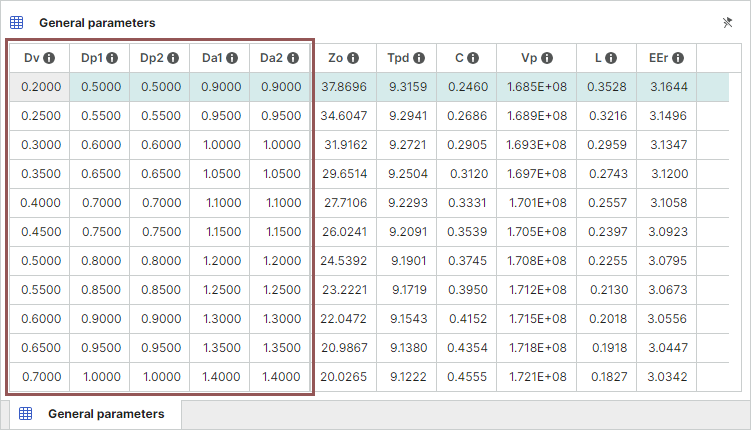
The graph with the calculated results is shown in a separate panel.
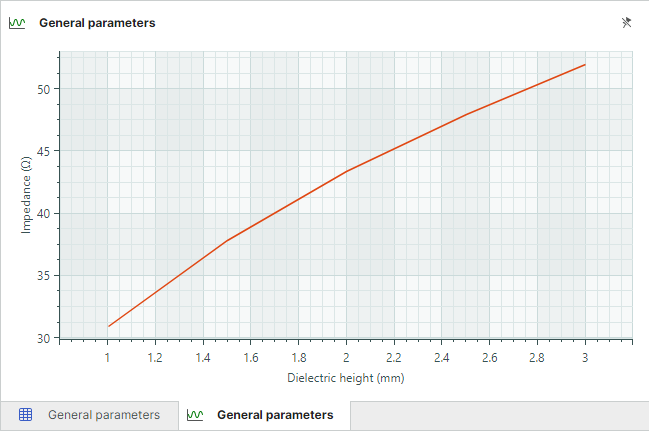
The X-axis of the graph displays the parameter that varies during the calculation.
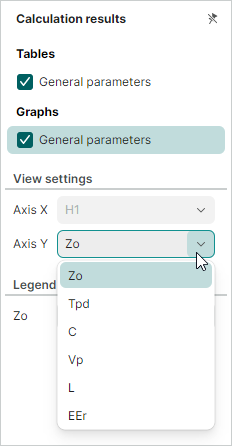
The Y-axis parameter can be changed. Switch to the Calculation results panel to specify the parameter to display on the Y-axis: Zo, Tpd, C, Vp, L, or EEr.